
System Center Operations Manager can manage the domain joined servers/machines using the default Kerberos protocol when the port 5723 is open. The machines which are not joined to the domain ( workgroup computers ) or the ones which are in a domain which doesn’t trust Ops Manager can be managed by importing certificates in both Gateway/Management Server and the client machine
This blog features the configuration of Certificate Authority role and creating Certificate Template
CA Server : AD.kartik.com
Login to the Active Directory Server as a domain Admin and configure the CA role
Navigate to Server manager and select add roles and features
Select Active Directory Certificate Services role
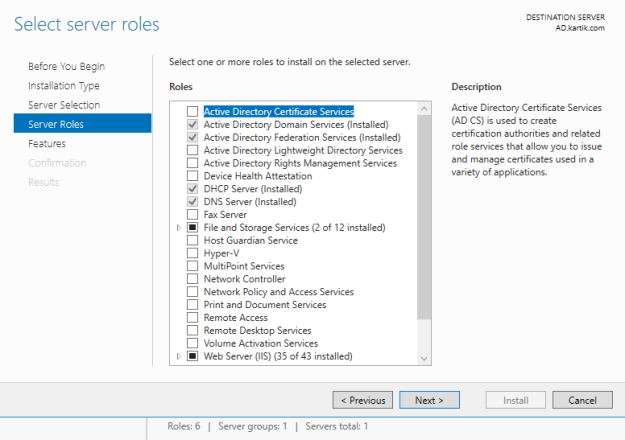
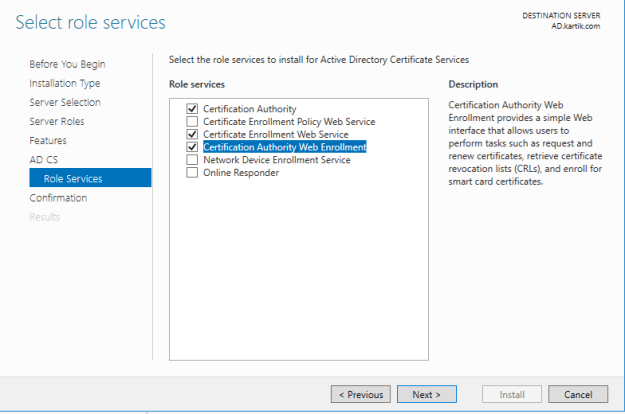
Select Certificate Authority, Certificate Enrollment Web Service, Certification Authority Web Enrollment.
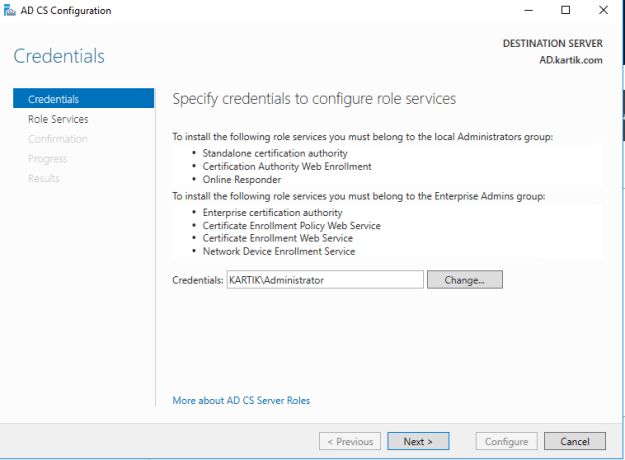
Specify credentials to configure AD CS Role
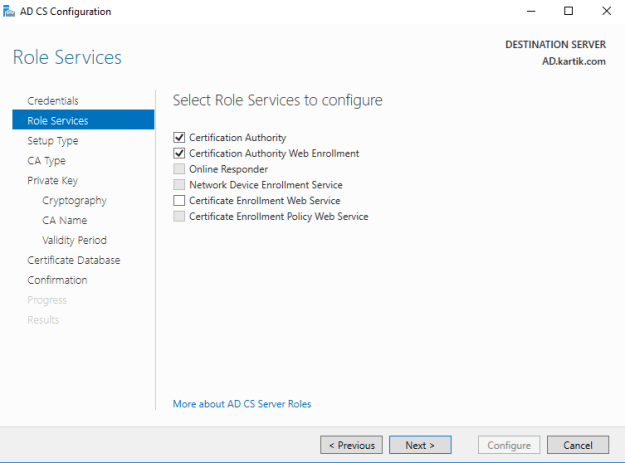
Select Enterprise CA
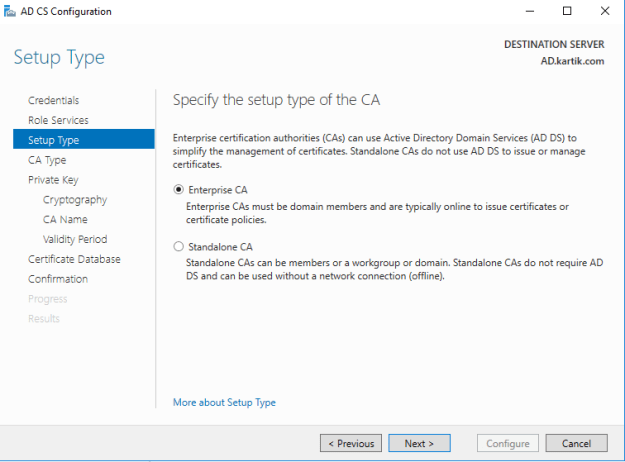
Specify the CA type as Root CA
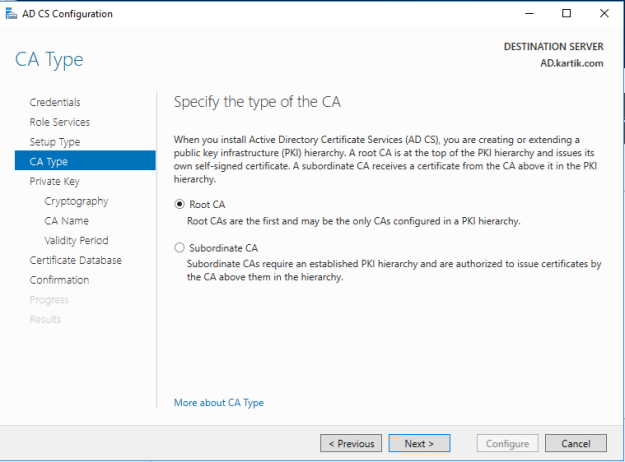
Select the option create a new private key
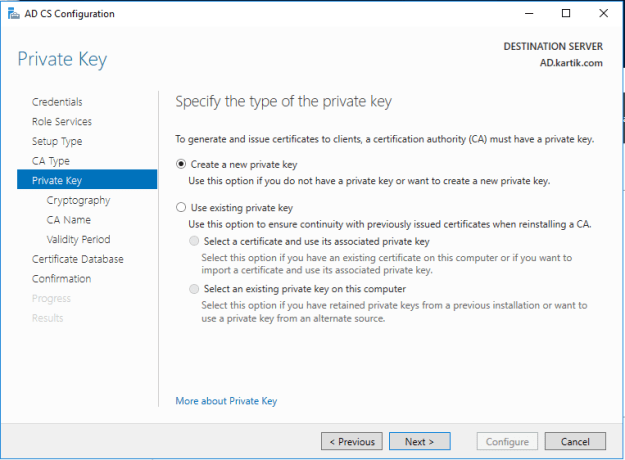
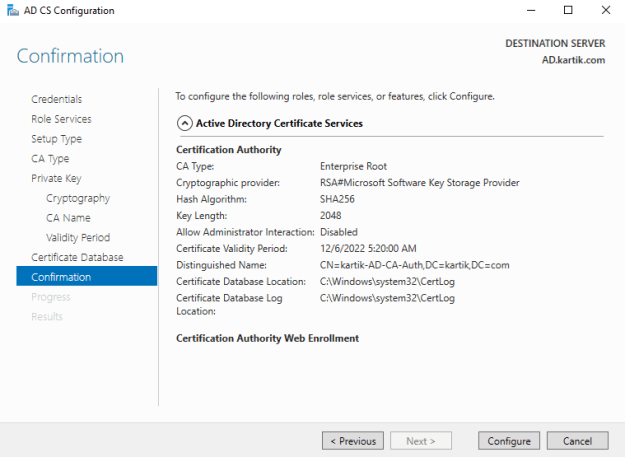
Select the default options for Cryptiographic provider and Key Length and select SHA256 as hash algorithm
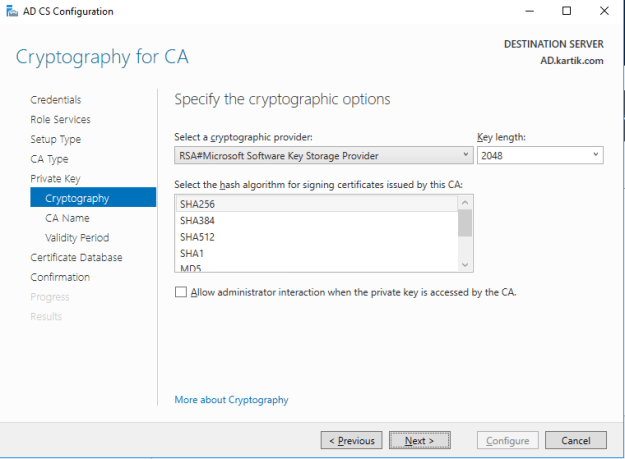
Specify the name to the Certificate Authority
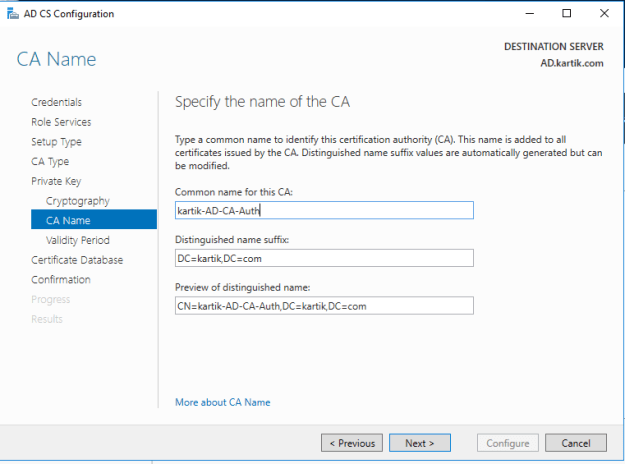
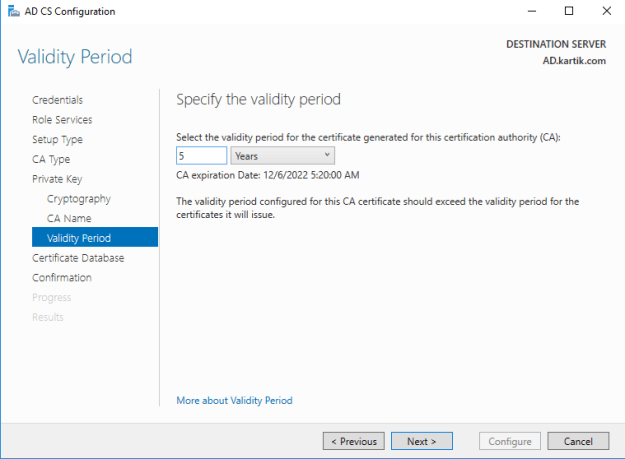
Specify the validity period as per the Company Policy
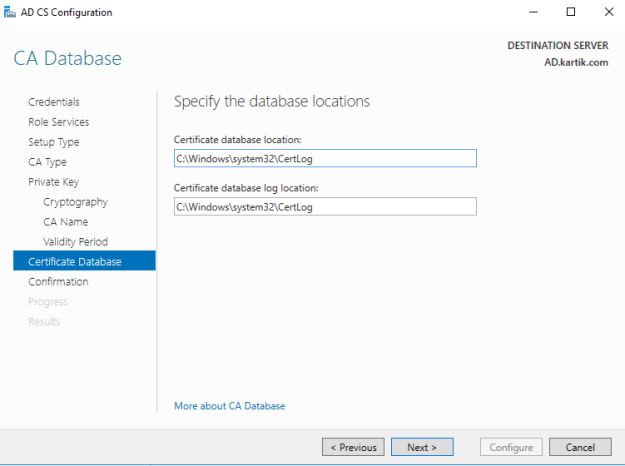
Choose the default database locations
verify the selected options
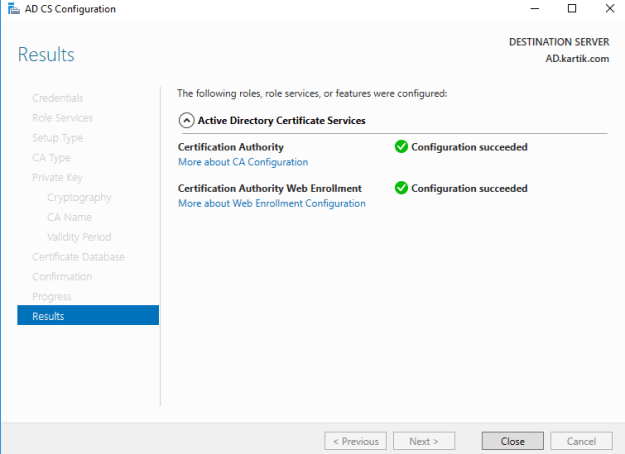
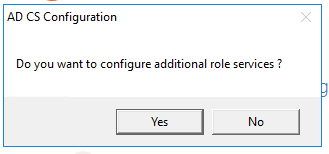
Configure the additional role services
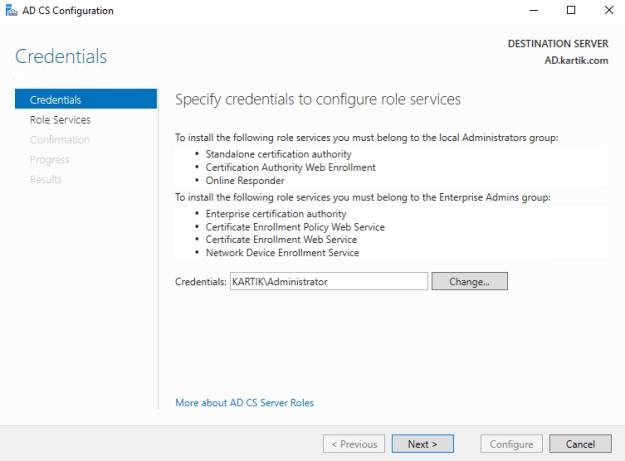
Specify credentials to configure role services
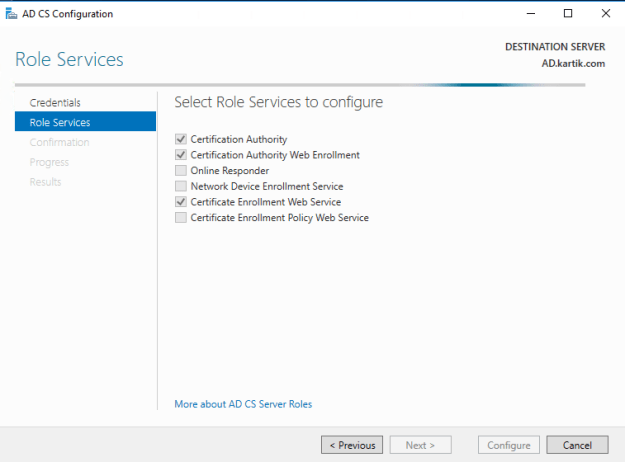
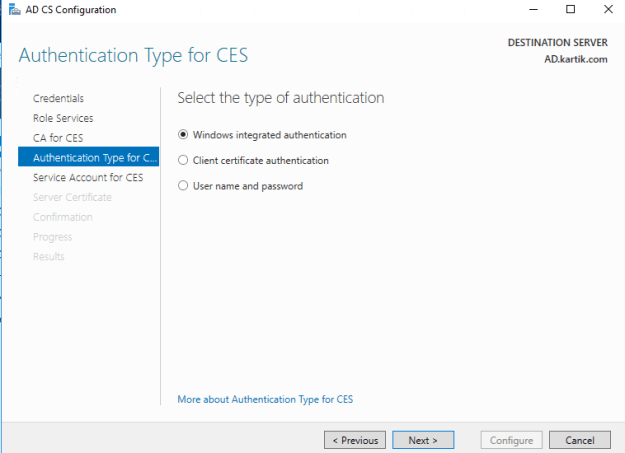
Select the authentication type as windows integrated authentication
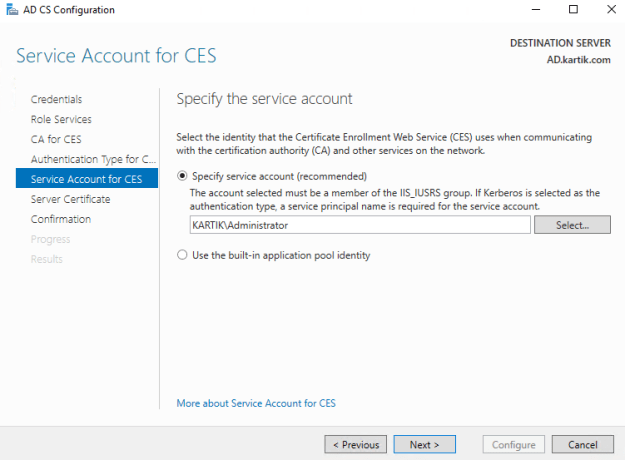
Specify the service account for CES

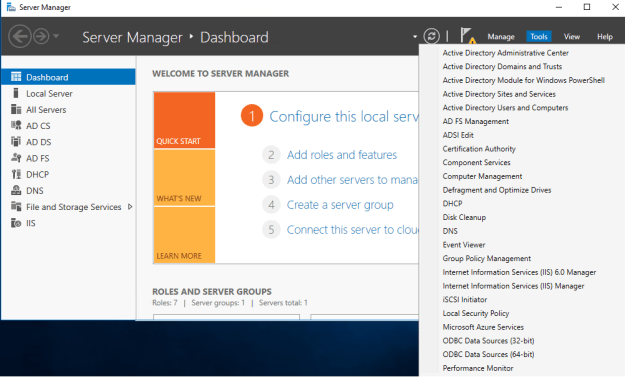
Select Certificate Authority from the Tools menu in Server Manager
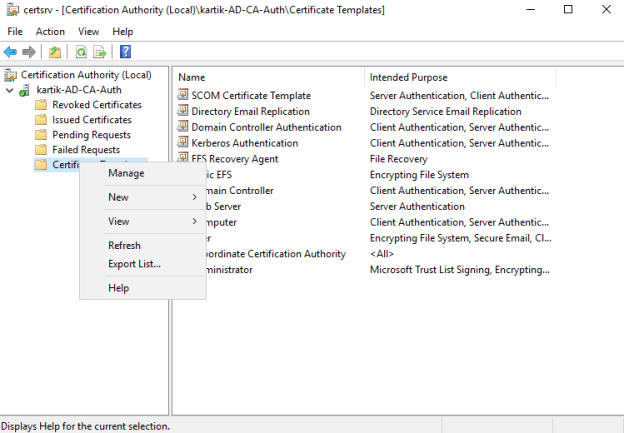
Click on Certificate Templates and select Manage
Select the template Ipsec Offline request and select duplicate template
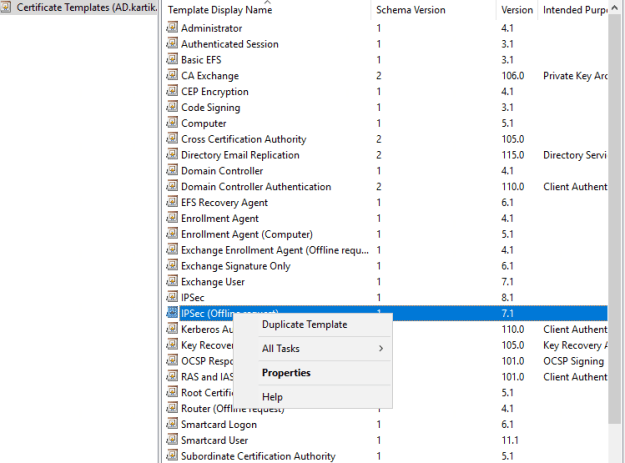
Leave the compatibility tab to default
Give the appropriate Template Name under general Tab
Select the validity period as per the Security Policy
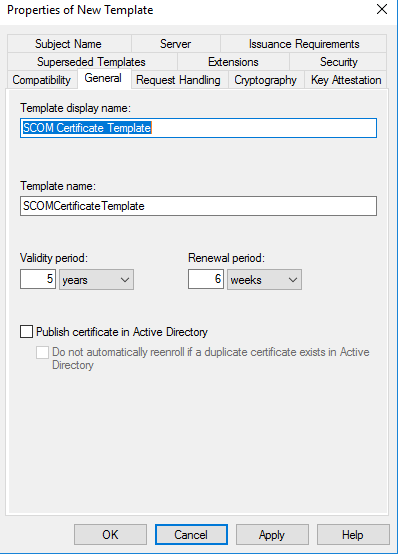
Under Request Handling, check Allow Private Key to be exported

Under Cryptography Select as Providers Microsoft RSA SChannel Cryptographic Provider and Microsoft Enhanced Cryptographic Provider v 1.0
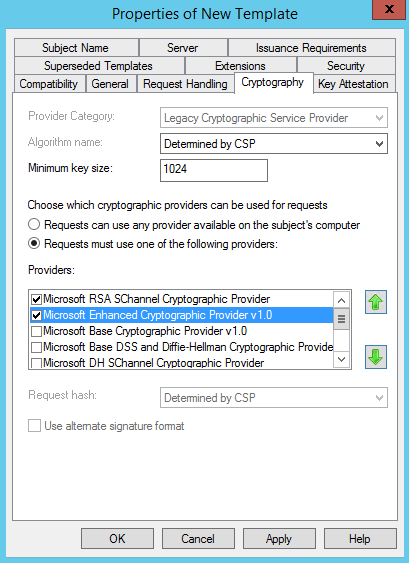
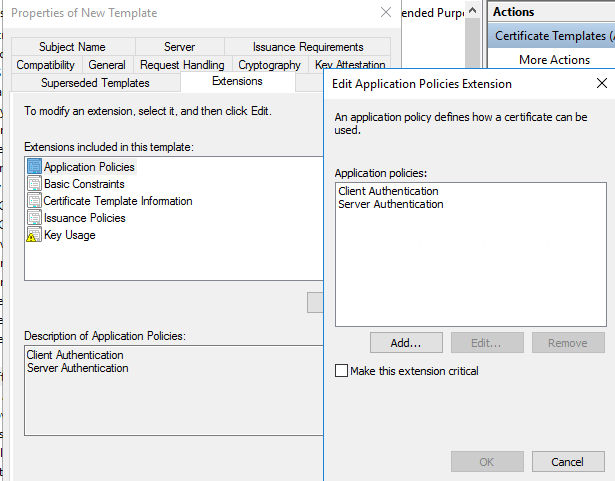
Navigate to Extensions tab and select Application Policies , click edit and select
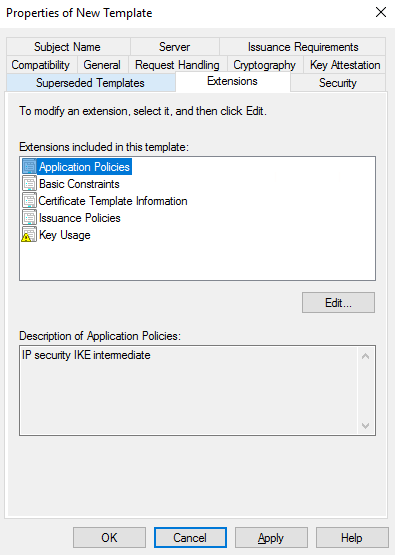
Select Client Authentication and Server Authentication
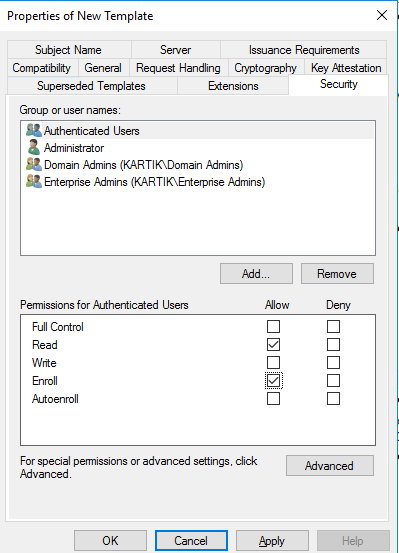
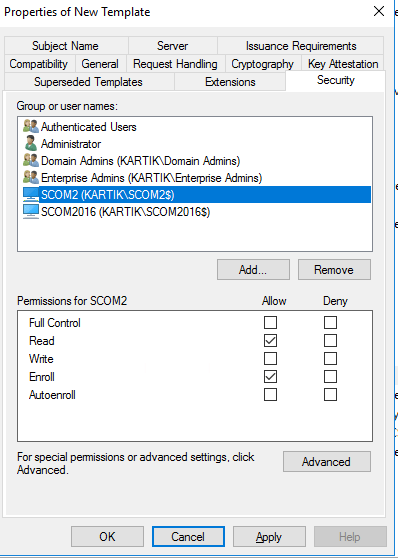
Navigate to security tab, select Authenticated users and click on Add
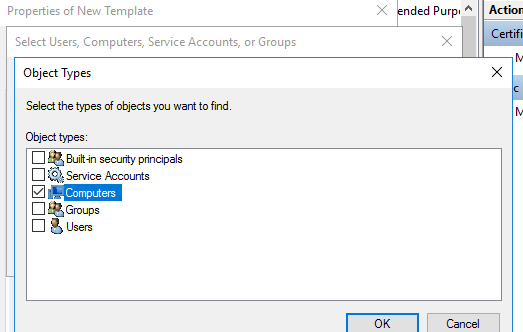
Select Object types as computers
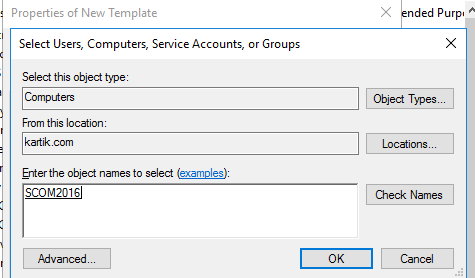
Search for SCOM Management Servers
Grant Read and Enroll permissions to the Management Servers
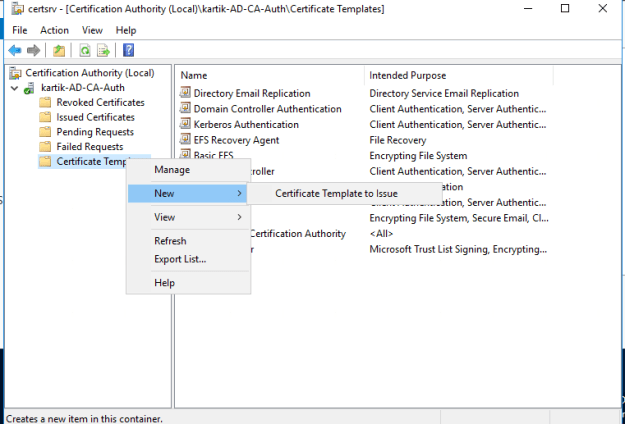
Go back to the Certificate Authority Console, Select Certificate Template, Click on New Certificate Template to Issue
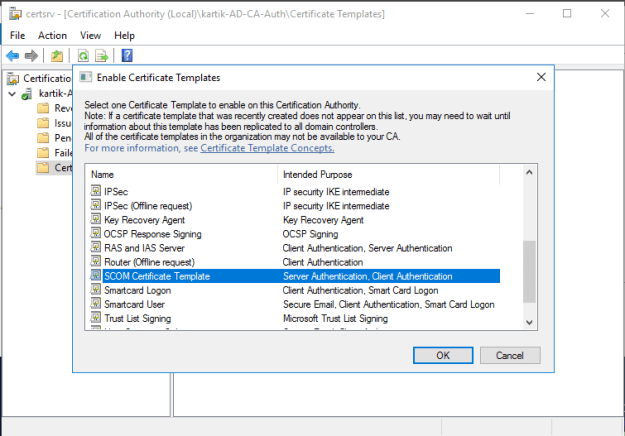
Select the Template which was created before
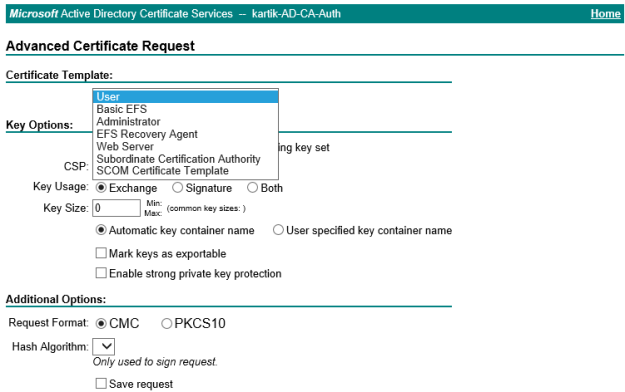
Launch https://ad/certsrv (https://adservername/Certsrv) from Management Server and select advanced certificate request
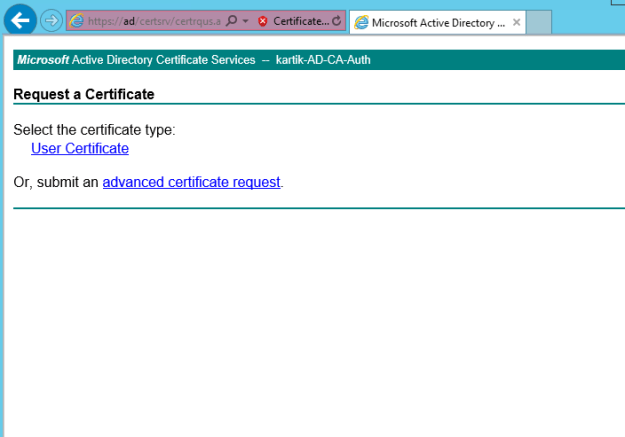
The certificate Template should be visible here


Como estas? tenes un paso a paso acerca de como instalar un agente en modo workgroup? en un escenario que no poisee gateway server? Muchas gracias, saludos desde Argentina.
LikeLike