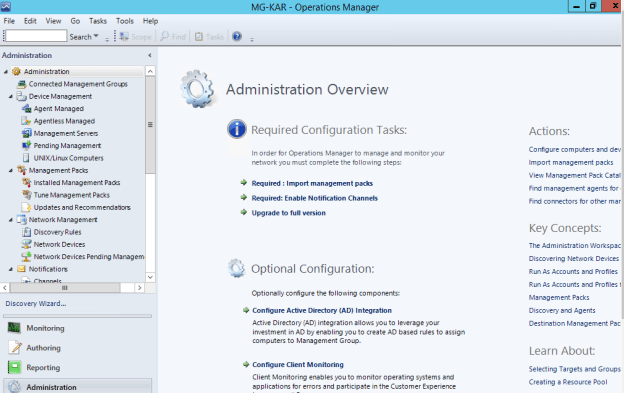
In SCOM, High Availability can be achieved at Management Server, Gateway Server and Agent level. If we drill down further more, we can even find ways to configure HA for SCOM console for uninterrupted monitoring
The sdk clients which connect to SCOM console can be made continuously available with Network Load Balancing. So, even in case of Management Server failure, the SCOM console will be operational
The SCOM Operations Console connections can be Highly available with Microsoft Network Load Balancing ( NLB ) , or using hardware Load Balancers or DNS aliases.
In this demo, I have chosen to use Microsoft Network Load Balancing
Prerequisites:
- Assign Static IP address instead of DHCP to the SCOM Management Servers
- Microsoft Network Load Balancing feature to be enabled in the Management Servers
- Create NLB Cluster
- Add Nodes to the Cluster
- Add cluster DNS-record to DNS zone
Primary Management Server: Server1.kartik.com
Secondary Management Server: Node2.kartik.com
Enable Microsoft Network Load Balancing Feature in both the Management Servers

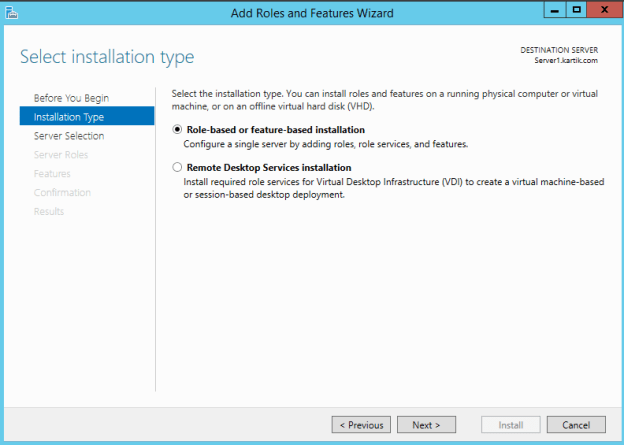
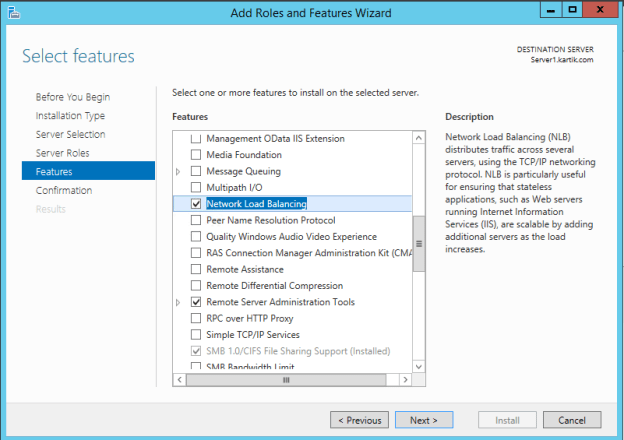
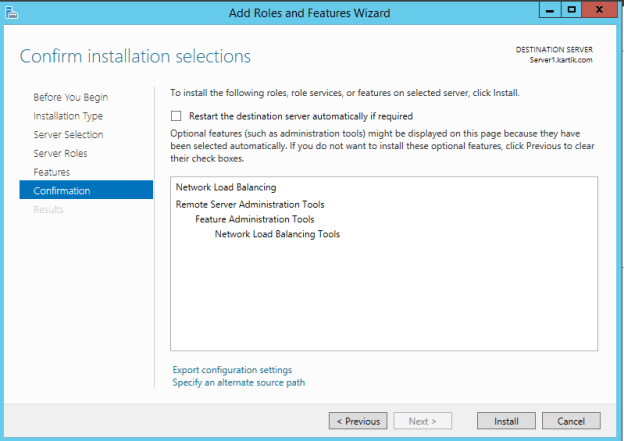
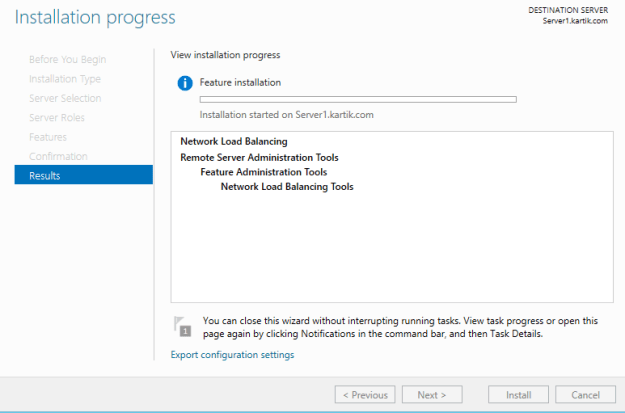
After successful installation of NLB feature, open Network Load Balancing Manager from Administrative Tools and create NLB Cluster
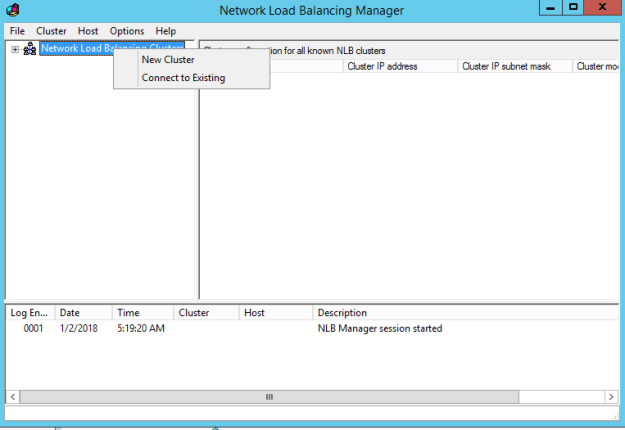
Add Primary Management Server as Host
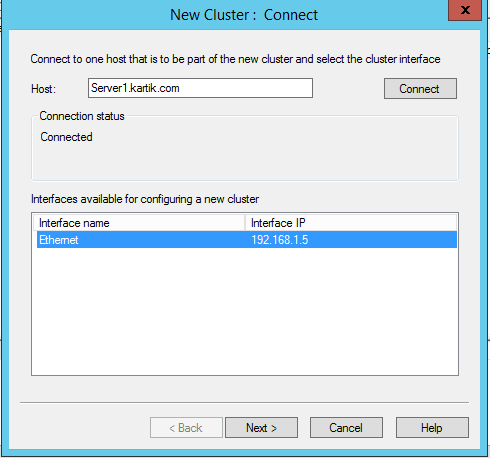
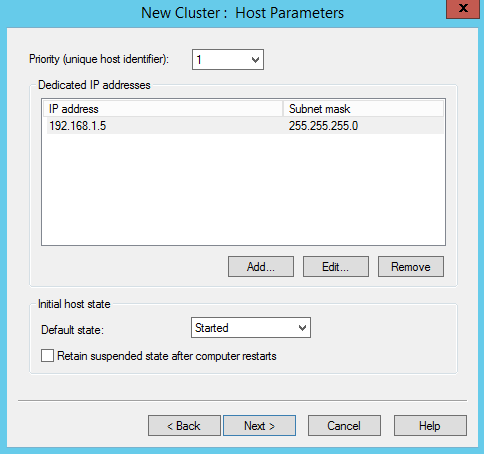
Give Cluster IP address
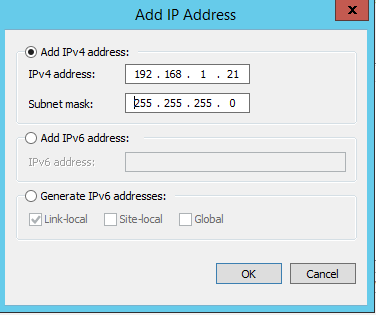
Give a Name to the Cluster
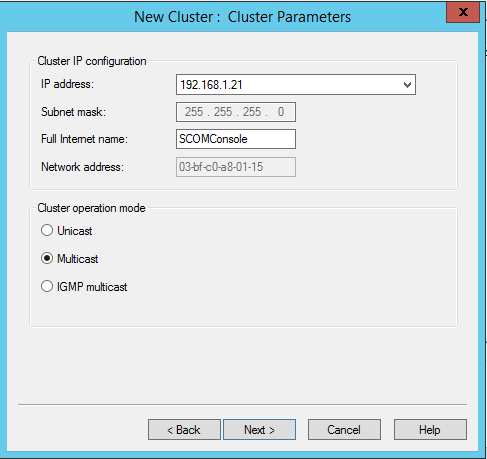
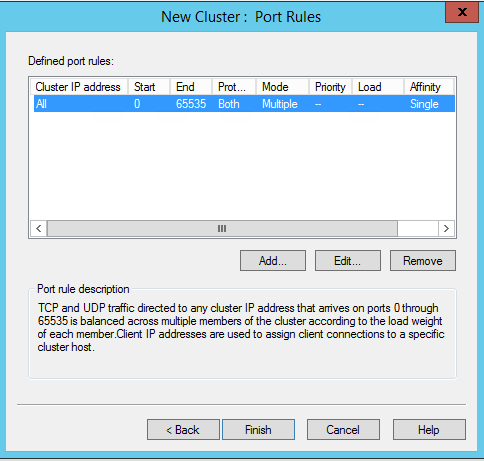
Connect Host to Cluster
Add Secondary Management Server to the Cluster

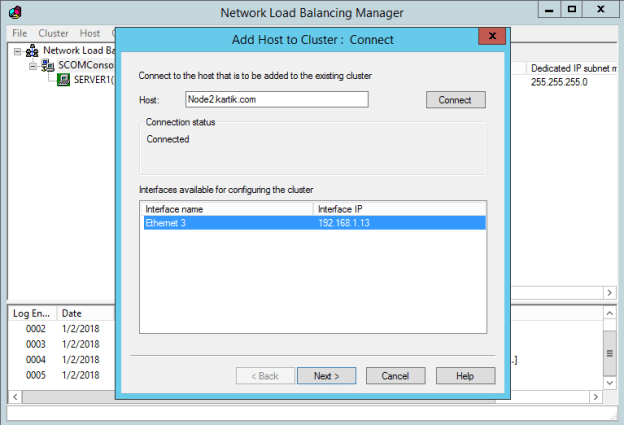
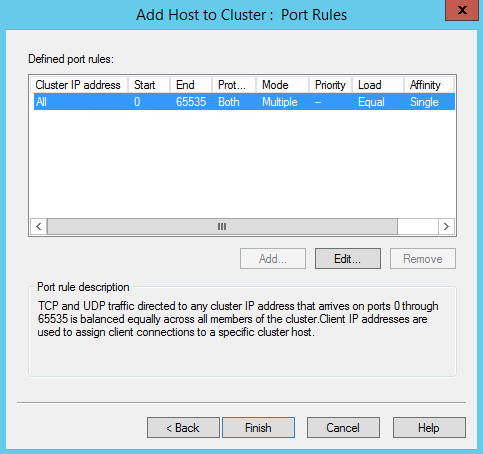
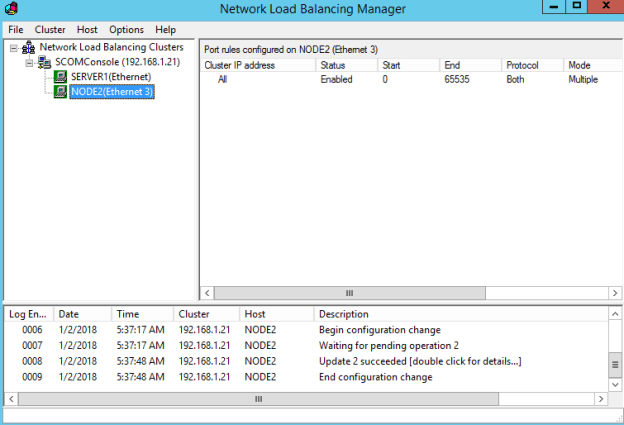
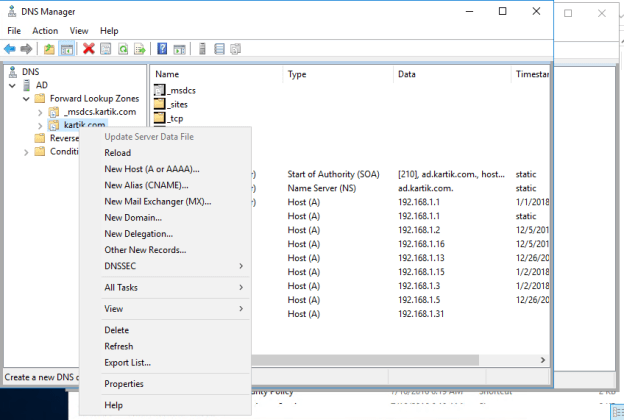
Add Cluster DNS records to DNS-Zone in DNS Server
Login to the DNS Server
Create “A” record for the Cluster
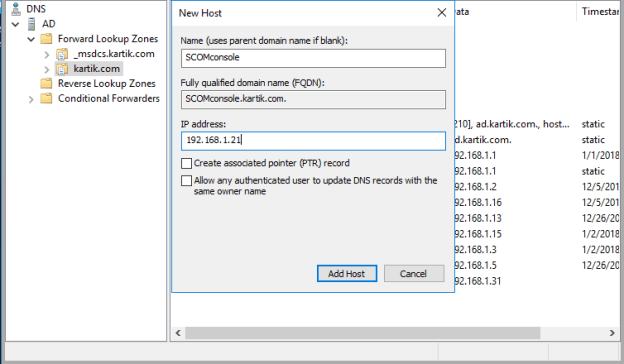
Access SCOM Console with NLB Name SCOMConsole.kartik.com
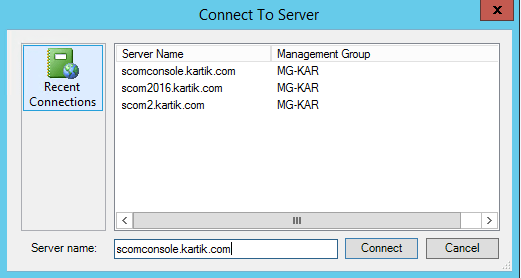
Now, we see that SCOM Console is operational with the NLB Cluster Name
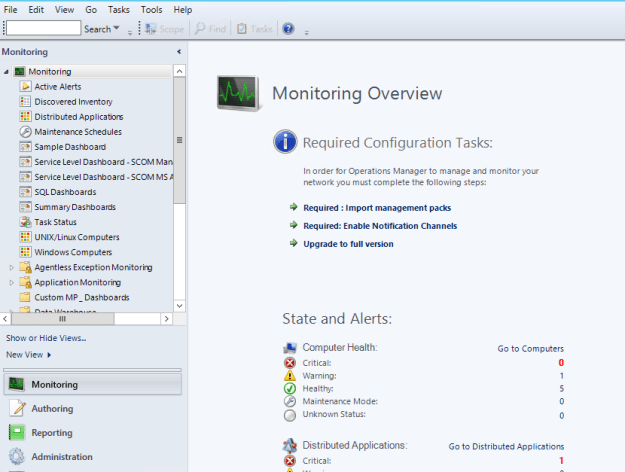
Test the Functionality:
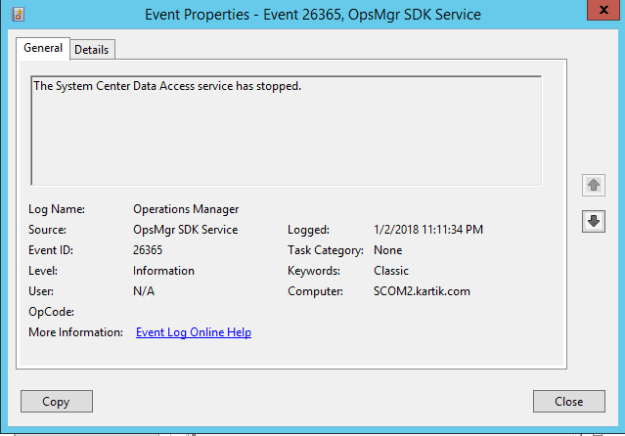
To test this functionality, I have stopped the Data Access Service in Secondary Management Server. This SDK Service is the core for accessing the SCOM console
SCOM console is connected to SCOMConsole.kartik.com
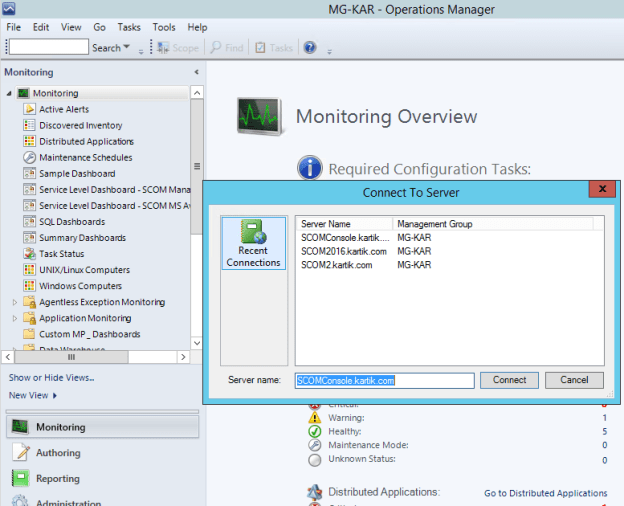
Let us stop the SDK Service
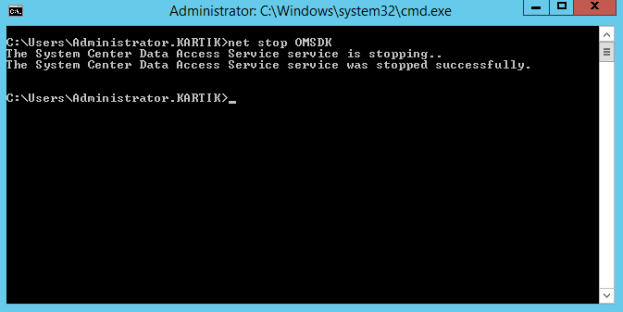
We can see that the SCOM Console is still operational